
Delivery Monitoring (Audit) - (User Guide)
links: https://dashboard.mcjimleather.com/modules/dma
(Scan to be directed to the user guide documentation.)
Overview
Delivery Monitoring (Audit) gives the Audit Team a full picture of every consignment delivery — from the Transfer Delivery (TD) stage through to its final Transfer Receipt (TR) or Pick Return. Each row is one delivery and shows how far it has progressed, including which notices have already been sent.
This view is for oversight and reporting. It lets the Audit Team review delivery progress, open supporting records, and export the list to PDF or Excel for their own records.
What you can do here
• Review each delivery's current status, from TD through to TR or Pick Return.
• See which notices have already been sent (First, Second, Third Notice Sent).
• Search, filter by status, filter by date range, and sort the list.
• Export the filtered list to PDF or Excel.
• Open supporting records: the promo decline reason, delivery-attempt history, and documents attached to a TR.
Who Can Use This Module
This module is intended for the Audit Team. Like other modules, access is granted by the MIS Department once the appropriate authorization is in place, after which Delivery Monitoring (Audit) appears in the user's list of modules.
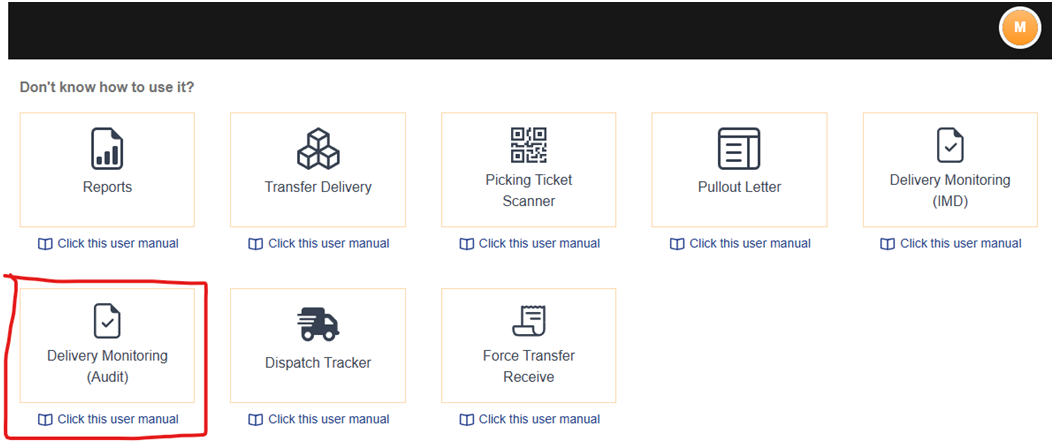
Key Terms
These abbreviations appear throughout the module. Understanding them makes the columns on the screen easy to read.
|
Term |
Stands For |
Meaning |
|
TD |
Transfer Delivery |
The delivery document for the goods sent to the store. Each row is keyed by its TD. |
|
Checklist |
— |
A list of TDs. It shows whether a TD has been added to a checklist or not. |
|
VDR |
Vendor Delivery Receipt |
The receipt confirming the vendor delivery. |
|
TR |
Transfer Receipt |
Created by the promo once goods are received. When created, a TR number is generated and appears here. |
|
Pick Return |
— |
The goods were sent back or reversed before delivery. This is an end state — no TR is expected. |
The Main Screen
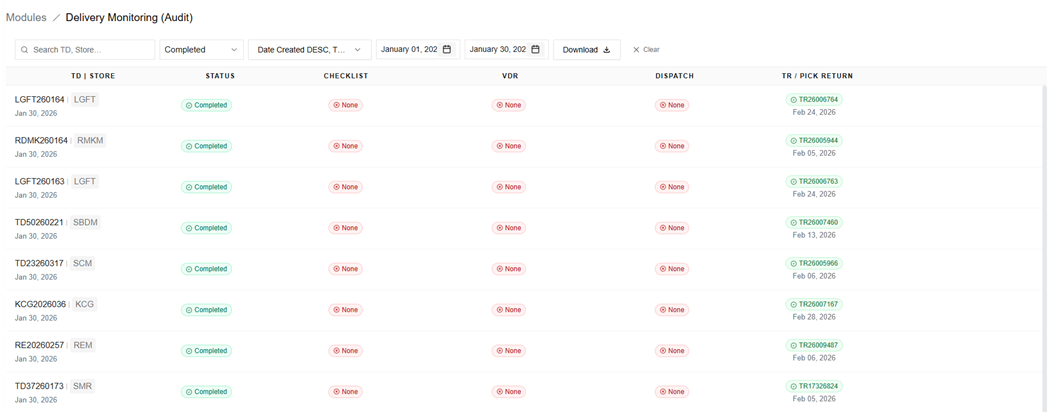
When you open the Audit View you see a table of deliveries. Each row is one delivery (identified by its TD), and the columns run left to right in roughly the order the delivery moves through the process.
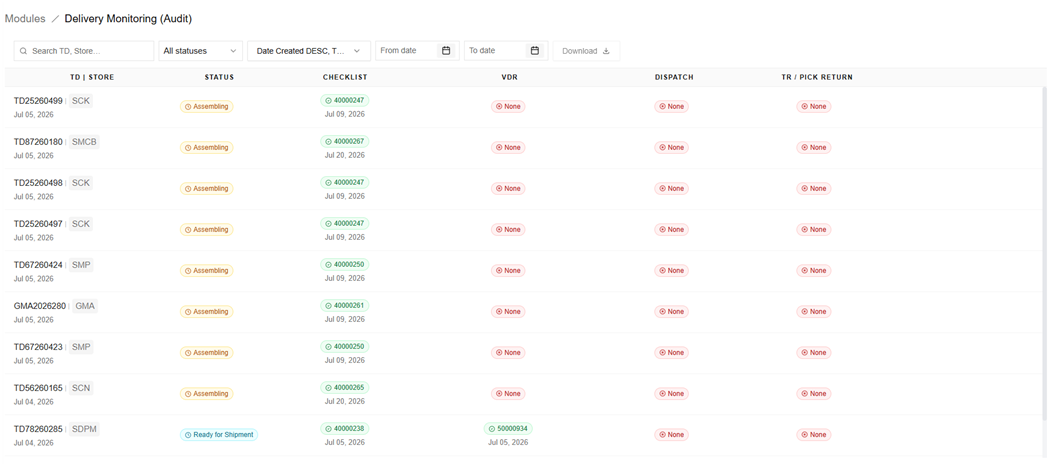
Columns
|
Column |
What it shows |
|
TD | Store |
The Transfer Delivery number, the store code, and the date the TD was created. |
|
Status |
The current stage of the delivery (see Section 5). |
|
Checklist |
The checklist number and date, or “None” if the TD is not yet on a checklist. |
|
VDR |
The Vendor Delivery Receipt number and date, or “None” if not yet available. |
|
Dispatch |
The dispatch timeline showing each delivery attempt and its result. |
|
TR / Pick Return |
How the delivery ends: the Transfer Receipt status, or a Pick Return if the goods were sent back. |

|
Reading the badges Green badge with a number — the record exists (for example, a checklist, VDR, or TR number has been created). Red “None” badge — that record does not exist yet. |
The TR / Pick Return column
The last column shows how each delivery ends and, for deliveries still awaiting a TR, which notice stage they have reached. The states you may see are:
|
What you see |
What it means |
|
A green TR number |
The TR has been created. The delivery is complete. |
|
Pick Return |
The goods were sent back or reversed before delivery. This is an end state — no TR is expected. |
|
For TR (blue) |
The goods are delivered and a TR is expected, but no notice has been sent yet. |
|
First Notice Sent (gray) |
The first notice has been sent to the promo. |
|
Second Notice Sent (amber) |
The second notice has been sent to the Area Supervisor. |
|
Third Notice Sent (red) |
The third notice has been sent to the Audit Team. |
|
None |
No TR exists and the delivery is not yet at a stage where a notice applies. |







Searching, filtering and sorting
The controls at the top of the screen help you find and organize deliveries:
• Search — search by TD or Store code.
• Status filter — show only deliveries in a chosen status, or “All statuses.”
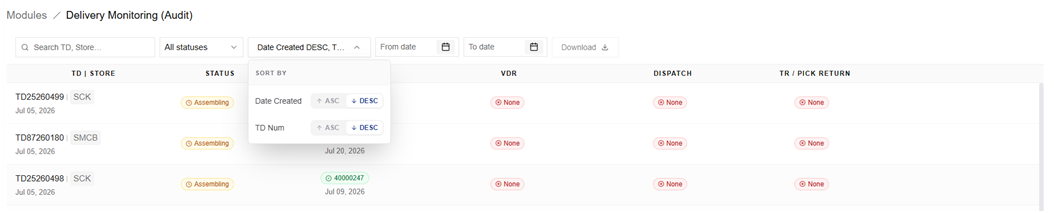
• Sort — sort by Date Created or TD Num, each ascending (ASC) or descending (DESC).
• From date / To date — limit the list to a date range. Both dates are required before you can export.
• Download — export the current list to PDF or Excel (see Section 6).
• Clear — appears when any filter is active; removes all filters at once.
The filter bar with the Status dropdown open, showing the list of statuses.
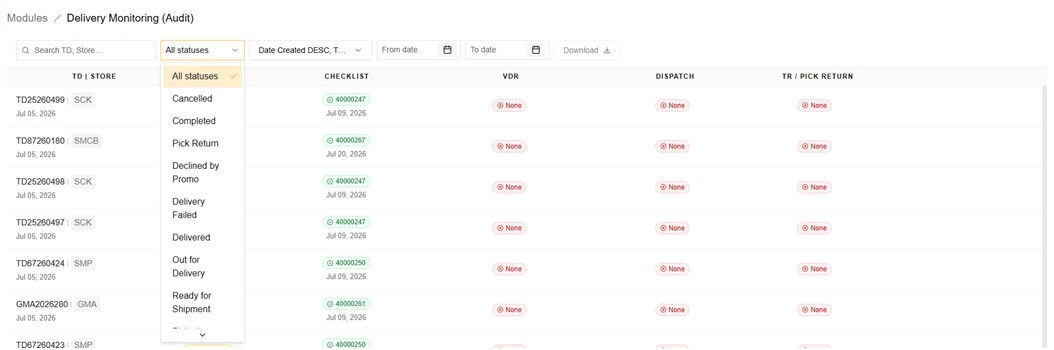
Sorting the list
The Sort dropdown controls the order of the list. It has two fields, each with its own ASC / DESC toggle:
• Date Created — orders rows by the TD creation date.
• TD Num — orders rows by the Transfer Delivery number.
Choose ASC for ascending (oldest or lowest first) or DESC for descending (newest or highest first). The button itself shows a summary of the current sort — for example, “Date Created DESC, TD Num DESC” — so you can see the active order at a glance. Whatever sort you set is also carried into any PDF or Excel export.
The list loads more rows automatically as you scroll. When every record has loaded, a message at the bottom confirms that all records are shown.
The list loads more rows automatically as you scroll. When every record has loaded, a message at the bottom confirms that all records are shown.
Delivery Statuses
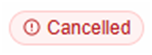
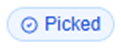
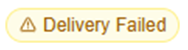
The Status column tells you where a delivery currently stands. The statuses you may see here are:

|
Status |
Meaning |
|
Picked |
The items have been picked. |
|
Assembling |
The TD is on a checklist and is being assembled. |
|
Ready for Shipment |
A VDR exists; the delivery is ready to ship. |
|
Out for Delivery |
The delivery is on its way to the store. |
|
Delivered |
The goods have been delivered to the store. |
|
Delivery Failed |
A delivery attempt failed. Click the dispatch timeline to view attempt details. |
|
Declined by Promo |
The promo declined to process the TR. Click the status to view the reason. |
|
Completed |
A TR has been created — the delivery is fully complete. |
|
Pick Return |
The goods were sent back or reversed before delivery. This is an end state — no TR is expected. |
Exporting Reports
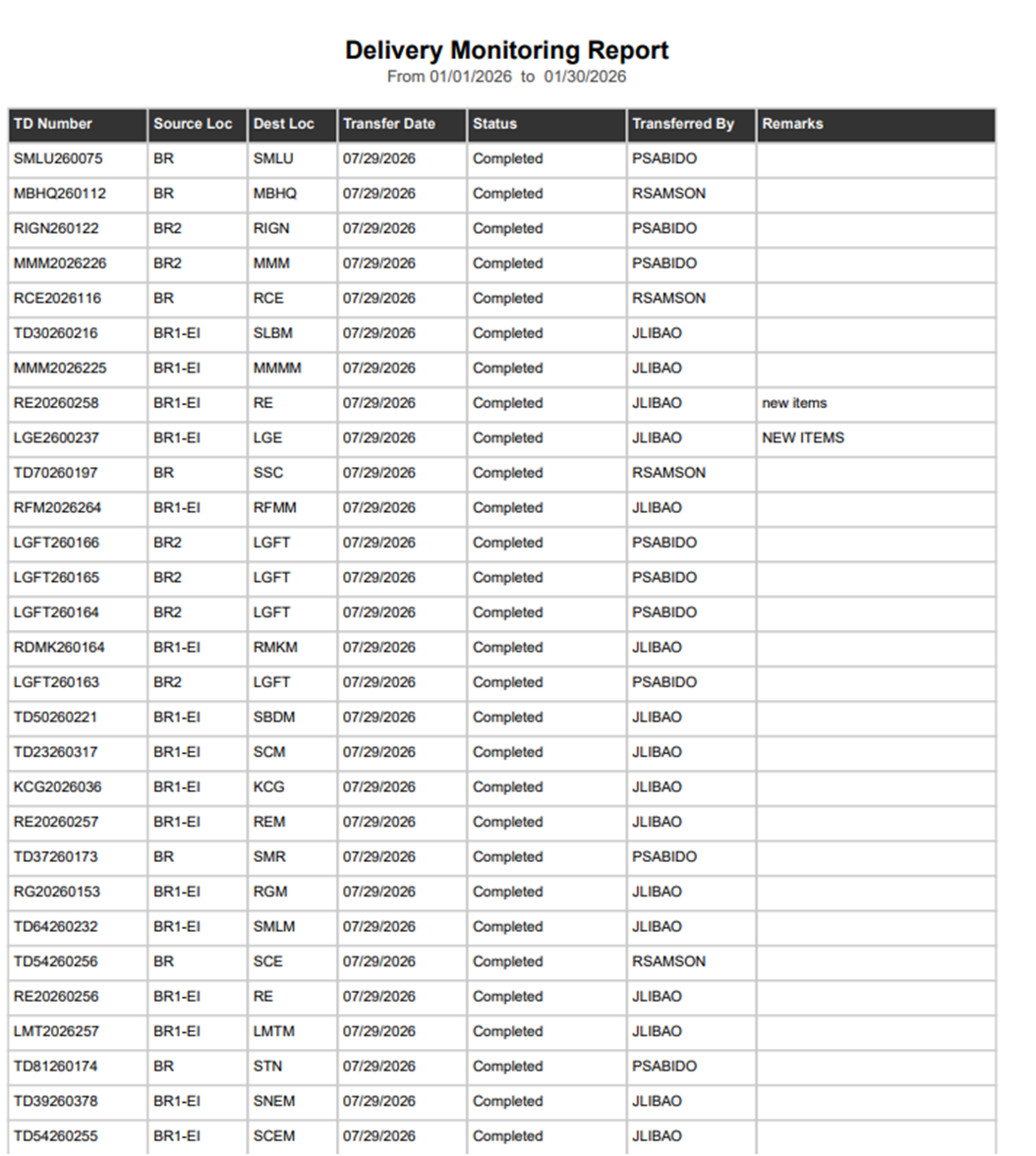
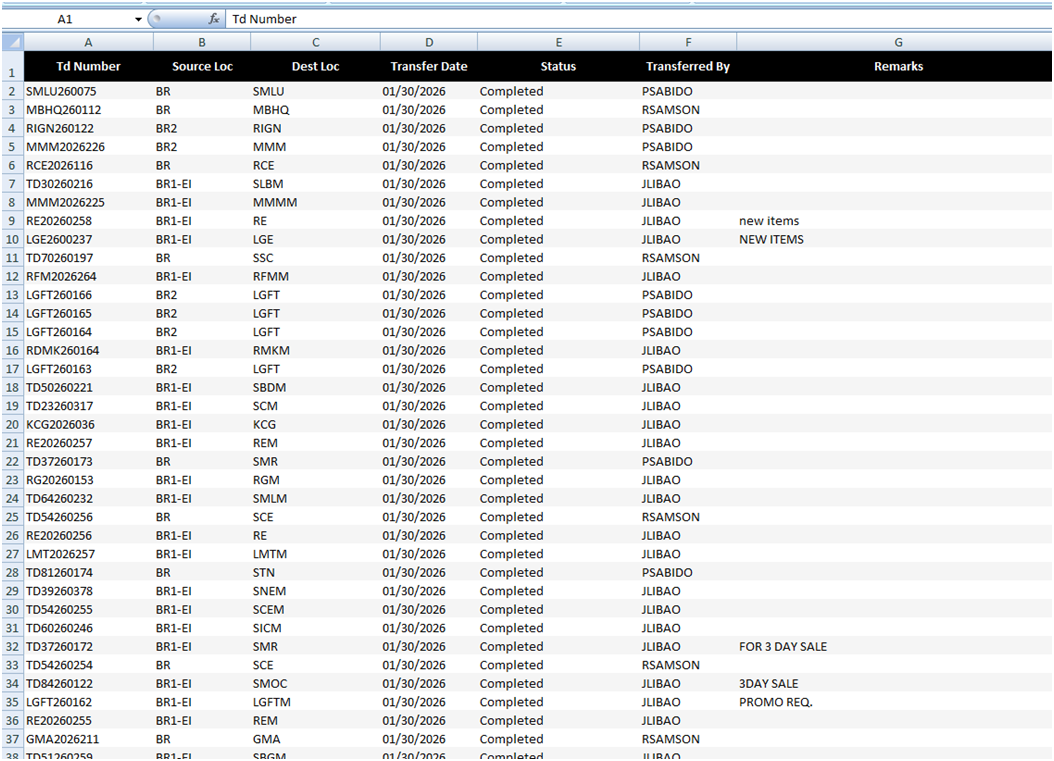
The Audit View lets you export the current list as a PDF or Excel file. The export uses whatever search, status, date, and sort settings you currently have applied, so filter the list first, then export.
How to export
1. Set a From date and a To date. Both are required — the Download button stays disabled until you have picked both.
2. Apply any other filters or sorting you want reflected in the report.
3. Click Download, then choose PDF or Excel.
4. PDF opens in a new browser tab; Excel downloads as a file to your computer.

PDF File
Excel File
|
Tip If the Download button looks grayed out, check that both the From date and the To date are set — it stays disabled until then. |
Viewing Extra Details
Some cells on the screen are clickable and open a window with more information.
Promo decline reason
When a status shows “Declined by Promo,” click it to open the Promo Reasons window. It lists each reason the promo gave, who entered it, and when — with the most recent reason shown first.

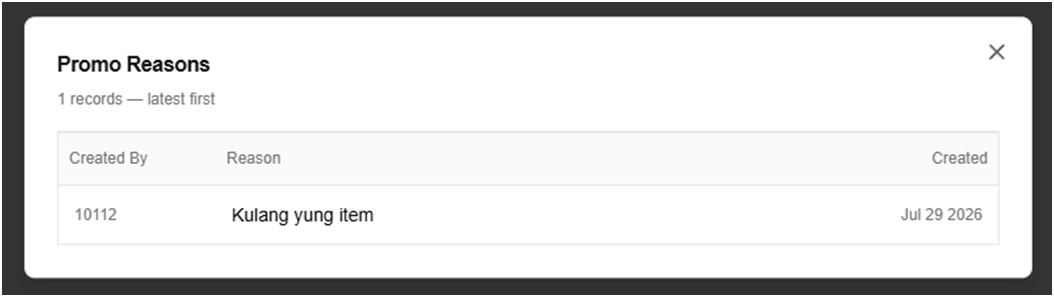
Delivery-attempt history
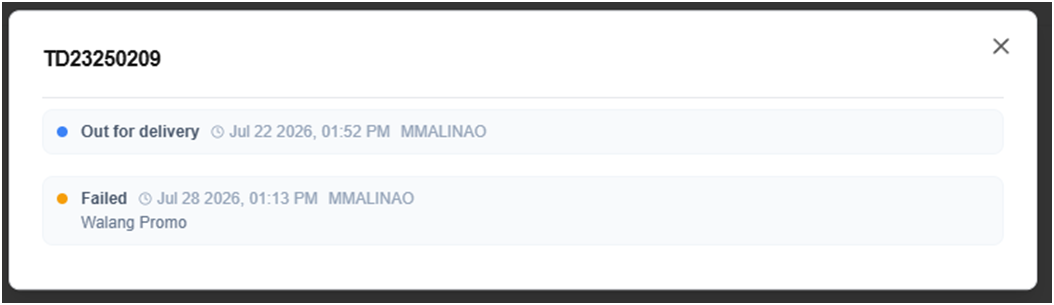
When a dispatch has a failed attempt, the dispatch timeline becomes clickable. Click it to open the delivery history, which shows each attempt, its result, the date and time, who recorded it, and any reason given.

Attached documents
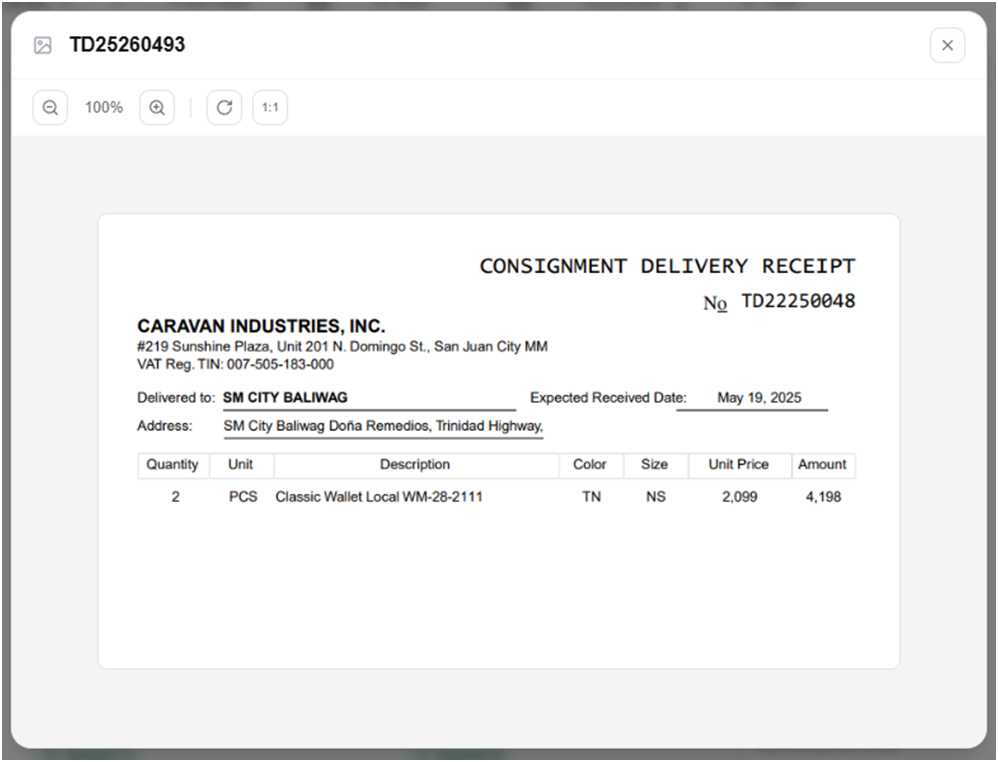
When a TR has attached documents, a file icon appears with the note “Click to view attached documents.” Clicking it opens the document viewer, where you can:
• Switch between multiple files using the tabs or the previous / next arrows.
• Zoom in and out, rotate the image, or reset the view to its original size.
• Drag the image to reposition it when zoomed in.
• Close the viewer with the X button or the Escape key.

Quick Reference
What the Audit View is for
• Reviewing delivery progress from TD through to TR or Pick Return.
• Checking which notices have already been sent.
• Producing PDF or Excel reports of the filtered list.
• Opening promo reasons, delivery history, and attached documents.
|
At a glance Filter first, then export — the PDF/Excel reflects your current filters and sort. Dates required for export — set both From and To dates to enable Download. |
No comments to display
No comments to display